Google Drive Backup Not Working For You? Here is the Fix

Is Your Google Drive Backup Not Working Here is the Fix

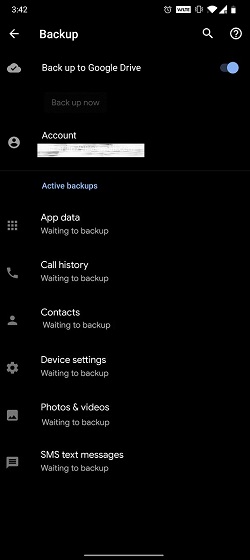
As an Android user, one of the features I feel envious about is the seamless iOS backup system. No matter which iPhone you switch to, all your backups — from system settings to passwords are imported without a hitch. So to bring a similar backup system on Android, Google has been revising its backup mechanism to bring seamless transition through Google Drive. However, there have been many frailties — sometimes it picks up your data and settings, but does not import it and sometimes it straight-up stops backing up your data. Recently, many have reported that their Google Drive backup is not working and has been perennially showing “Waiting to Backup” error. So to solve this problem, in this article, we bring you a step by step guide with detailed instructions. That being said, let’s get started without any delay.

Fix Google Drive Backup Not Working
Fix Google Drive Backup Not Working 3

Here, we are going to fix the Google Drive backup issue using a few ADB commands. For that, we are following Dexer125’s guide from XDA Forums. In case you are wondering about root– no, you don’t need root privilege to fix this issue. The steps are quite straightforward but it does require a PC to execute the commands. Now having said that, let’s go through the steps.

  • Fix “Waiting to Backup” Error in Google Drive

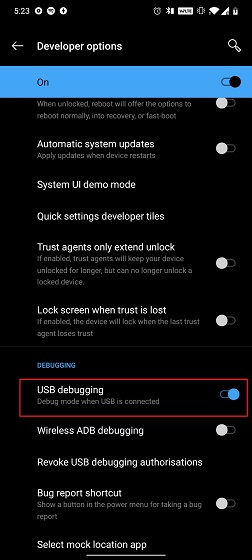
Before we begin, make sure you have enabled “USB Debugging” from Developer Options. If you have not done this before, follow these steps. Open Settings and go to “About Phone”. Here, tap on the “Build Number” continuously for seven times to activate Developer Options. Now, go back and you will have the menu enabled. Open it and scroll down and enable “USB debugging”. There you have it.

Secondly, make sure ADB is properly set up on your computer. Again, if you are new to this, follow our tutorial by clicking on the link. Now that you have set up the basics, let’s begin.
Fix "Waiting to Backup" Error in Google Drive

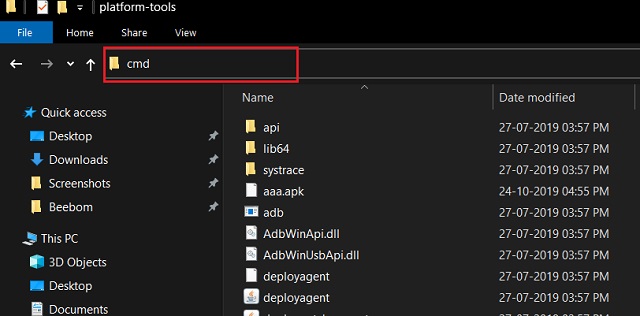
1. Connect your device to the computer and open the platform-tools or ADB folder. Here, type cmd in the Explorer’s address bar and hit enter.
Fix Google Drive Backup Not Working

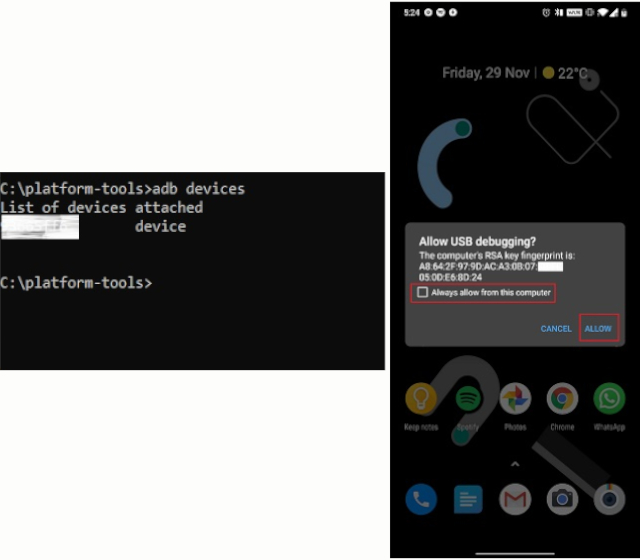
2. A Command Prompt window will open up. Now, type adb devices to check if the computer has detected your Android device. A prompt will appear on your smartphone asking for permission. Allow it and then Command Prompt will show a serial number of your device.
2

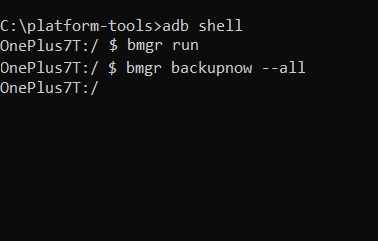
3. Now that we have established the connection, let’s get to the main thing. Type the below commands one by one and hit enter. If you don’t get any error during the process, you are done. After that, restart your smartphone.

adb shell
bmgr run
bmgr backupnow --all
Fix Waiting to Backup Error in Google Drive 2

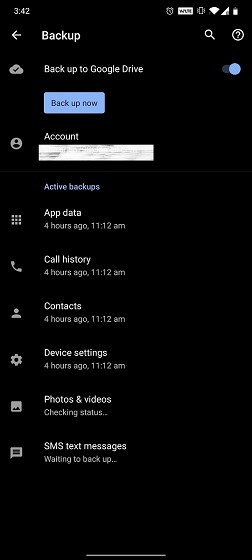
4. Now, Google Drive backup should start working again and the greyed out backup button should go live.
3

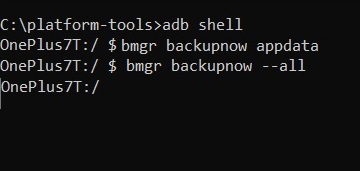
5. However, in case, you encounter any kind of error, execute the below commands one by one and then restart your device. This will manually force Google Drive to start the backup process. Make sure you are in the adb shell mode.

bmgr backupnow appdata
bmgr backupnow --all
Fix Waiting to Backup Error in Google Drive

Is Your Google Drive Backup Working Again?

So that was our guide on how to fix the Google Drive backup issue that has been plaguing Android devices for a long time. While Google is trying hard to unify Android backup system, these kinds of basic issues don’t bode well for the Android ecosystem. Anyway, if the article helped you fix the problem, do comment down below and let us know. In case, you are still facing some problems, let us know the exact error that you getting. We will definitely take a look into it.

Comments

Popular posts from this blog

iPhone 12 to Have 5nm Processor, Qualcomm’s X55 5G Modem: Report

Apple is all set to launch its first 5G iPhones next year, and a new report out of Japan now claims that they will ship with Qualcomm’s X55 5G modem under-the-hood. According to multiple sources quoted by the Nikkei Asian Review , at least three of the devices the company will launch next year, will ship with 5G connectivity. “It will be the first time Apple introduces 5G iPhones … There will be three of them and the company has set an aggressive sales target” , said one of them. As per the report, the next-gen iPhone lineup will be powered by the A14 chip that will use the 5nm technology, making it significantly more power efficient than its predecessor, the A13 Bionic, found on the current-gen iPhone 11 lineup. At least two of the three new phones will also have what the report called ‘flexible’ OLED displays, although it’s not immediately clear what it meant by that term. In addition, Apple is also developing a new ‘3D-sensing rear-camera’ that is said to be able to “sense t...

Windows 10 Insider Build 19013 Adds Power Toys, New Kaomoji, and More

Microsoft has already pushed the near-final release version of the Windows 10 November 2019 Update and is now focusing its efforts on the next major 20H1 update. We’ve been keeping track of the new features being tested with Insiders for some time now and well, the latest build, number 19013, brings improvements to the Linux subsystem, emoji tray, and Your Phone features. The highlights of Insider Build 19013 is the return of Power Toys. They’re special utilities that were made popular in the Windows 95 and Windows XP era, but had been nixed to make way for new features over the past few years. Well, they’ve now made a return to Windows 10 20H1 Insider builds this month, starting with 2 features, PowerRename and FancyZones. While PowerRename makes it possible for users to rename files in bulk, the FancyZones feature lets you drag apps into defined target positions on your PC. You can take a close look at the FancyZones feature right here . Apart from this, the Windows subsystem f...

Samsung Launches Galaxy Labs; an App Suite to Help Optimize Your Phone

Though OneUI 2 is set to bring along a number of changes to Samsung’s Galaxy phones, the company has today released a new suite of device optimization apps. Dubbed Galaxy Labs, it’s offering users access to 4 apps, including a file restoration app, battery tracker and optimizer, and an app booster. All of these four apps live under Galaxy Labs, similar to the “Device Care” feature on the company’s OneUI-powered devices. Let’s talk about each service under this app, starting with File Guardian. It’s going to serve as one of the most used and important apps in the Galaxy Labs suite as it will help recover permanently deleted files from your internal, as well as external storage. Next up, we have Battery Tracker and Battery Guardian apps. The name of these 2 apps are enough to tell you what they do. While the former gives you an in-depth look at the device’s battery usage (more detailed in comparison to the in-built battery tracker), the latter only checks if existing battery optimiza...